User guide
Contents
Start the metronome
Press play and it starts right away. Even with the sound off, the blocks and notation in the center light up so you can see the tempo.

- Press the play button (Space on a computer) to start and stop
- Drag the tempo ruler, or use − and + on either side to change the tempo by 1 (press and hold to keep changing it)
- Press the tempo number to type a BPM or choose a preset from 20 to 200
- Press TAP a few times along with a song to measure its tempo
Ways to set the tempo
Use whichever way suits you. Changing the tempo while playing never interrupts the sound.
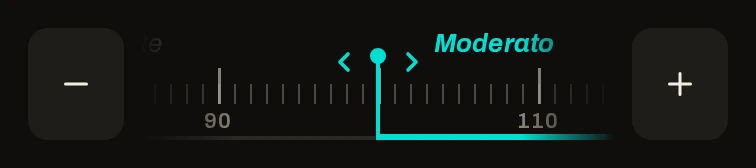

- Ruler: drag or click it, or use the mouse wheel and the arrow keys.
- Number: on a phone, swipe the number up or down to change it. Press it to open "Choose a tempo", where you can type a BPM or choose from the presets and your recent BPMs.
- Presets: 20 to 200 in steps of 20. On a computer, they sit under the ruler, and you can also choose them with the 1–0 keys.
- Recent BPMs: the tempos you played are listed, so you can go back to one right away.
- TAP: measures the tempo from the time between your taps, and shows how many times you tapped (T on the keyboard). While tap timing is on and the metronome is playing, it shows how far off the sound you are instead, without changing the tempo.
There is also a page just for measuring: Measure BPM by tapping. You can play the tempo right there and switch to half or double.
Tempo markings and tempo colors
The ruler marks show tempo markings such as Allegro as a guide. The current tempo also shows in the color of the lights and the number (purple for slow, toward red for fast).
| Marking | BPM | Meaning |
|---|---|---|
| Grave | 20–39 | Slow and solemn |
| Largo | 40–59 | Broad and slow |
| Adagio | 60–79 | Slow and at ease |
| Andante | 80–99 | At a walking pace |
| Moderato | 100–119 | At a moderate pace |
| Allegretto | 120–139 | Fairly fast |
| Allegro | 140–167 | Fast |
| Vivace | 168–199 | Lively |
| Presto | 200–300 | Very fast |
These BPM ranges are a rough guide. They vary between sources, and from piece to piece and performance to performance. This table follows the divisions on tempofy's ruler.
Time signatures and subdivisions
Choose from 2/4, 3/4, 4/4, 5/4, 6/8 and 7/8 time, and quarter, eighth, 16th, triplet and 32nd subdivisions.

- Press the time signature button to open "Rhythm" in the settings, then choose a time signature.
- Press the subdivision button to cycle through quarter → eighth → triplet → 16th (you can change it while playing).
- In tempofy, 6/8 and 7/8 count the eighth note as one beat, so the subdivisions become eighth, 16th, triplet and 32nd. 6/8 is often felt as two dotted quarter beats, and when a score gives its tempo on the dotted quarter note, the BPM is three times that number (the maximum is 300 BPM, so this works up to 100 on the dotted quarter note). By default, beats 1 and 4 are strong notes in 6/8, and beats 1, 3 and 5 in 7/8. The grouping of 7/8 differs from piece to piece, so you can move the strong notes with the accents.
Accents (strong, weak, rest, tie)
Set each note of the subdivision to a strong note, a weak note, a rest or a tie.
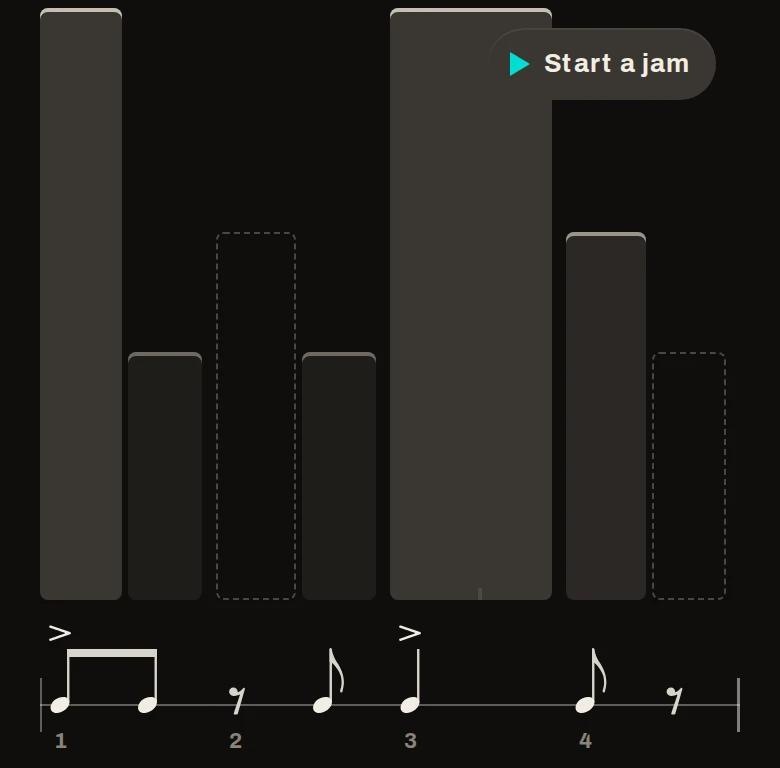
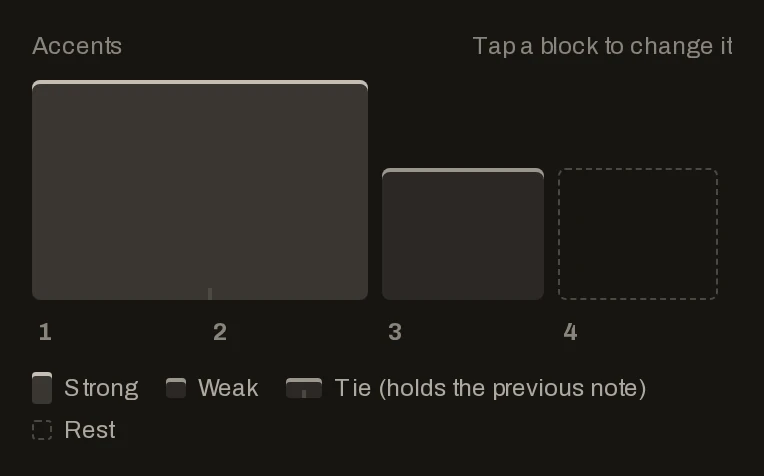
- While stopped, press a block in the center to cycle it through strong → weak → rest → tie
- If the notes are too small to press easily, press a beat to zoom in and choose the notes one by one
- Right after a change, "Undo" shows for about 5 seconds
- To change accents while playing, choose a beat under "Rhythm" in the settings, then switch its notes one by one below. With Ring and Linear, you can also press the dots under the figure
A tie holds the previous note (no new note sounds). The notation writes it as one note of that length (a quarter note, a dotted note and so on). While the metronome is playing, the blocks in the center are for display only and don't change when pressed.
Beat display
Change the center display to what is easiest for you to follow. You can even turn the sound off and practice with the lights alone.
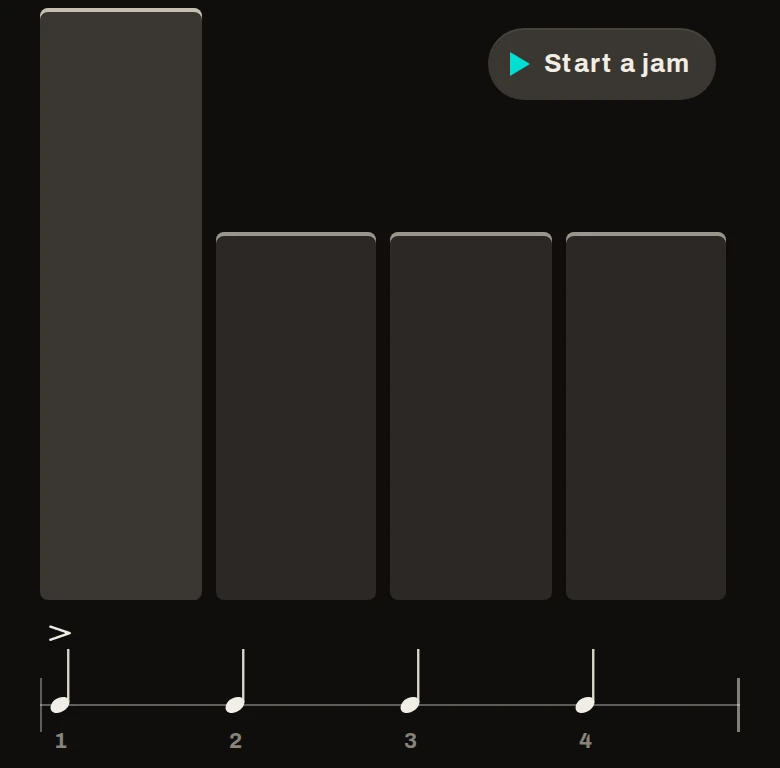
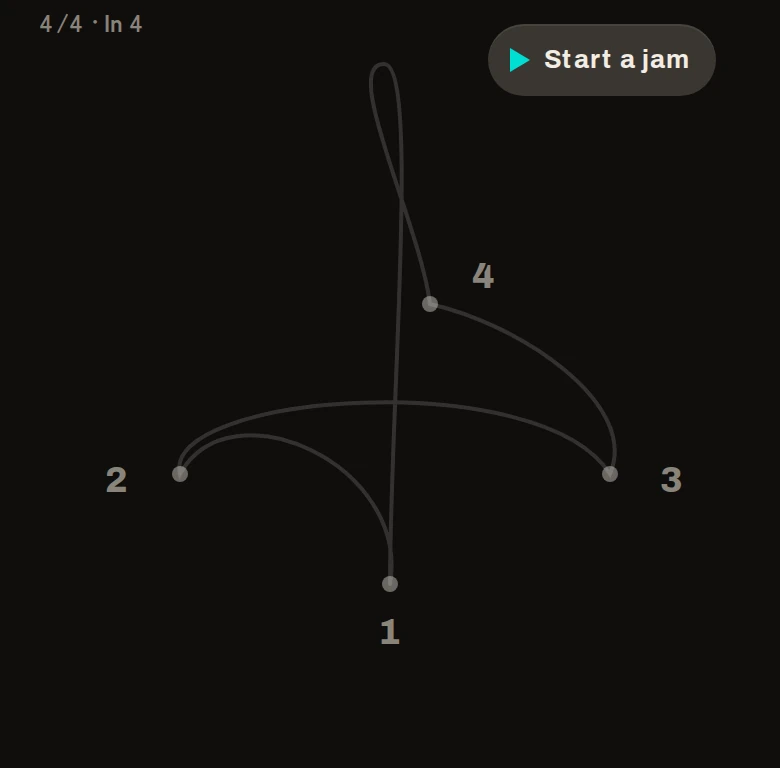
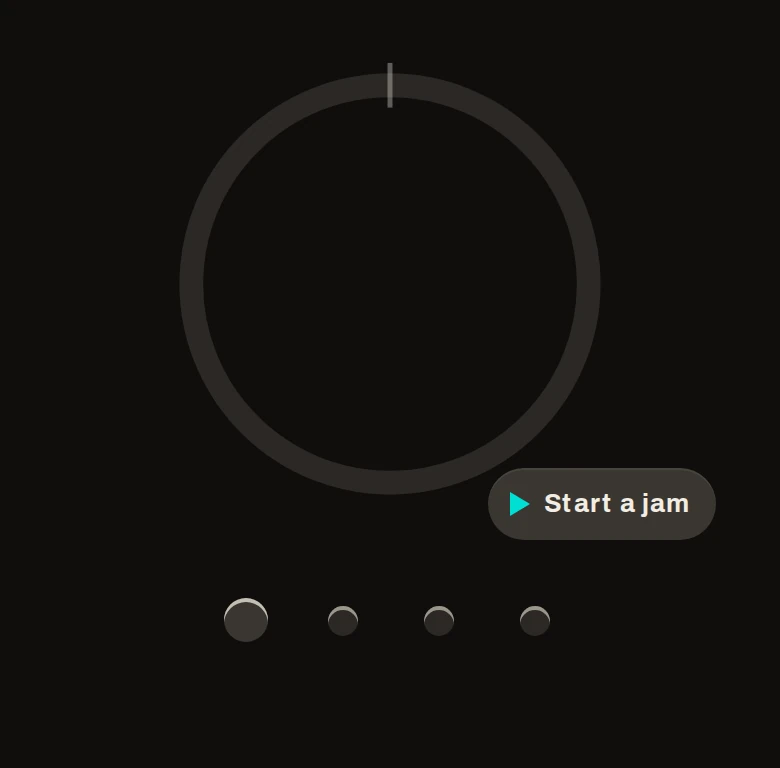
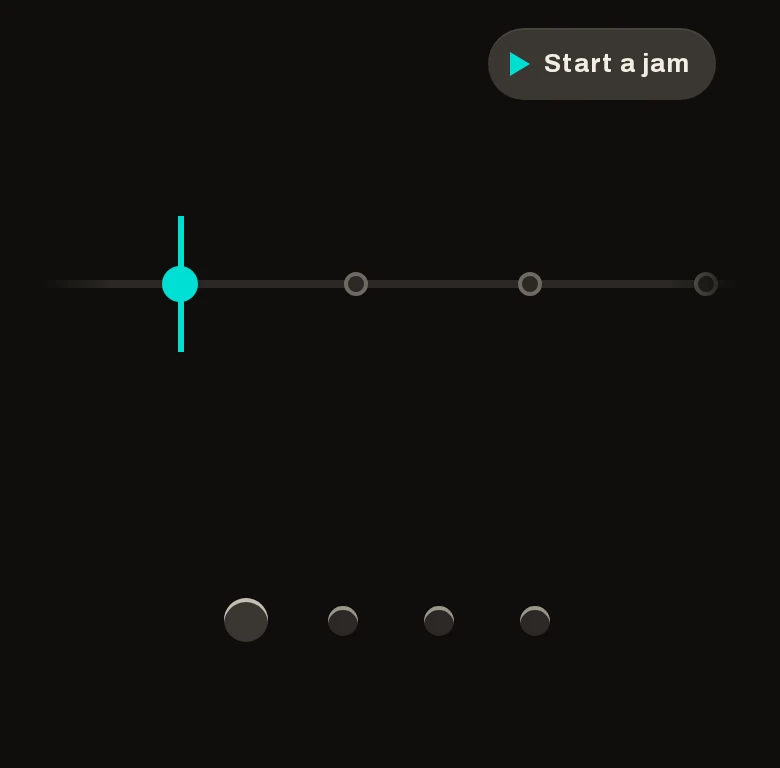
- What to show (Bars only): choose Blocks, Both (blocks + notation) or Notation. Notation on its own is shown large.
- Flowing bars (Bars only): upcoming notes flow in from the right and sound when they reach the line (like a rhythm game). Turn it on or off with the "Flow" switch.
- Beat shape: choose Bars, Baton, Ring or Linear. Baton shows the beat as a conductor's baton movement (for ensembles and choirs). Ring moves the beat around a circle, and Linear along a single line. On phones, each press of the display button under the tempo moves on: Blocks + notation → Notation only → Blocks only → Baton → Ring → Linear (you can also choose under "Display and feedback" in the settings). On computers, choose under "Beat display".
- Beat effects: Full grows colour and light the longer you play. Simple keeps colour to the tempo itself. Switch it under "Display and feedback" on phones, or with "Effects" next to "Flow" on computers. The notation-only view is always simple.
If reduce motion is on in your device settings, flowing bars start off and only the first note of each beat lights up. Beat effects stay on Simple whatever you choose.
Sound settings
Change the sound, volume and more under "Sound" in the settings.

- Sound: choose click, woodblock or hi-hat
- Volume: set it to the level you like
- Sound button: mute the sound and practice with the lights alone
- Count-in: counts one bar before playback starts
- Vibration: vibrates your device on the beat (Android)
On iPhone and iPad, there may be no sound while the silent mode switch is on.
Sound and display sync
If the sound arrives late through wireless headphones or speakers, the lights and the flow are delayed to match it. Only the display is shifted; the timing of the sound never changes.
- It adjusts automatically, using the delay your device reports
- If a gap remains, fine-tune it in 10 ms steps under "Sound and display sync" in the settings (also from "More" in the menu on a phone, or the "More" menu on a computer)
- "Measure by tapping" asks you to tap 8 times along with the sound and 8 times along with a light, then measures the delay and adjusts the display for you (about 15 seconds)

When you switch headphones, it adjusts again automatically.
Speed trainer
Raises or lowers the tempo automatically every few bars. Handy for speeding up a hard passage little by little.

- Open "Speed trainer" in the settings (on computers and tablets, in the right column)
- Set the start and target BPM, the step (how many BPM to change at a time) and the interval (how many bars between changes)
- Choose "Speed up" or "Slow down" and press play: the tempo changes right at the start of a bar
Tap timing
Tap along with the sound, and a meter shows how far off you were. Like a tuner's needle, the middle is the sound, the left is early and the right is late.

- Turn on "Tap timing" under "Rhythm practice" in the settings (on computers and tablets, in the right column)
- Press play: one bar counts in, then timing starts. While it measures, the corners of the display in the middle light up, with "Measuring" and your taps so far (like 3 / 16)
- Tap along with the sound: on the display in the middle, on "HIT" (TAP while it plays), or with T on the keyboard
- After 16 taps a result appears in words, without stopping. When you stop, the summary shows how evenly you tapped from 16 taps, and whether you were rushing or dragging from 24. With gap practice on, it shows how far off you were when the sound came back instead. Results are not saved

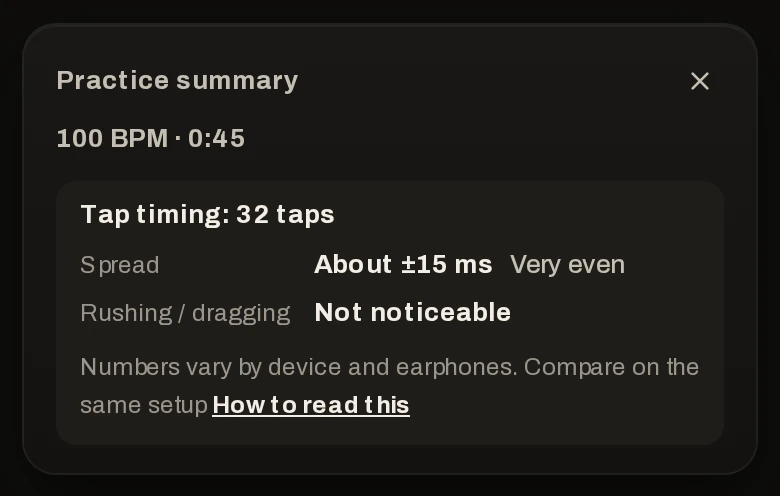
Tapping while it plays does not change the tempo. While it is stopped, TAP measures the tempo as usual. If the meter leans to one side, set Sound and display sync first. For what to practice, see Rhythm practice when your timing drifts.
Gap practice
After the bars you choose, the sound and light drop out. When the sound comes back, you find out whether you kept the same tempo.
- Turn on "Gap practice" under "Rhythm practice" in the settings
- Choose "Play" (2, 4 or 8 bars) and "Silent" (1, 2 or 4 bars)
- Press play: the bars left before the sound goes are shown. Keep counting at the same tempo while it is silent. Gap practice alone measures nothing: see for yourself whether your beat matches the sound when it returns. Keep tapping with tap timing on as well, and the summary shows how far you drifted in the silence
Vibration also stops during the silence. With the speed trainer, the tempo does not change while it is silent.
Jam
Tap along for 16 bars. The more evenly you tap, the more the sound and colour grow. It taps the same way as tap timing, and the result is a score.
- While stopped, press "Start a jam" in the display in the middle. It does not appear while tap timing or gap practice is on
- One bar counts in, then tap along with the beat: on the display in the middle, on "HIT" (TAP while it plays), or with T on the keyboard
- The more evenly you tap, the more the band grows, from kick to hi-hat to bass, and the colours grow stronger with it. The top level is "Full band". A missed note takes one level away
- Each tap shows Just, Good, Early, Late or Miss. After 16 bars it stops by itself and shows your score and counts. "Play again" starts another right away
Taps are judged against your own beat, not the sound, so the delay of a pair of earphones does not lower your score. The band plays in 4/4; other time signatures use the usual click alone. Tap timing and the count-in are on for that run only, so your settings do not change. Results are not saved.
Practice records
Your practice time and tempos are recorded, so the more you practice, the more progress you can see.
- While the metronome is playing, your practice time shows inside the play button.
- When you stop after practicing for 3 minutes or more, a small card sums up your practice time and tempos. You can share it too. With tap timing, 16 taps or more bring up a short summary even before 3 minutes.
- tempofy lets you know when you beat your fastest tempo held for 30 seconds or more.
- When you're signed in, your practice goes into your practice report, with charts of your daily practice time and how your tempo has changed.
My presets
Save them on this device, even without signing in.
- Name your current settings (tempo, time signature, subdivision, accents, sound and more) and save them to My presets (up to 20)
- Open "My presets" in the menu to use, reorder, rename or delete them
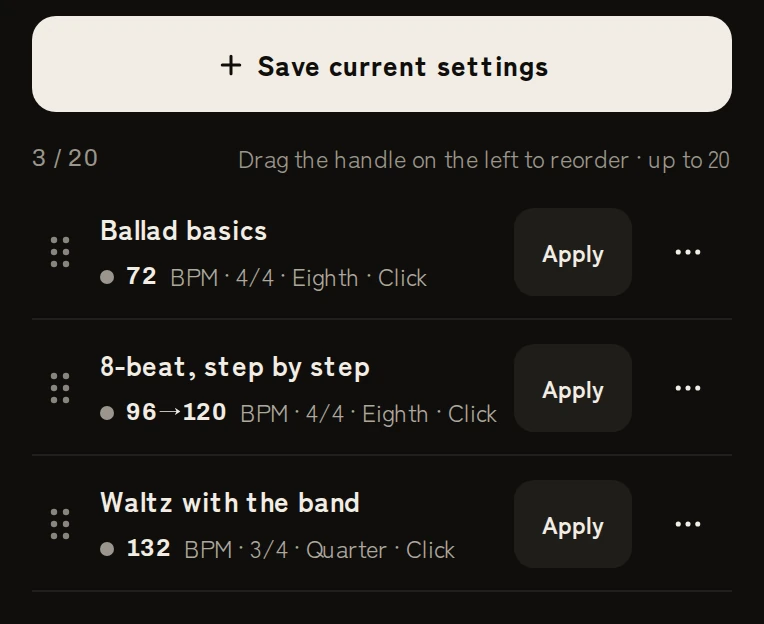
When you sign in, what's saved on this device moves to your account and syncs with your other devices. Safari on iPhone and iPad may clear a site's data if you don't open it for a while, so signing in is the safer way to keep records you want to hold on to. Even if you add tempofy to your home screen, what you saved in Safari may not carry over to the app.
Sharing
Send a tempo or a way to practice as a link.

- Share tempo: send your current tempo and settings such as the time signature and subdivision.
- Send a practice plan: send a link with the tempo steps, accents and a short note — from teacher to student or within your band.
- Whoever opens the link can start the metronome with the same settings in a single press.
On computers and tablets
On the larger screens of computers and tablets, everything fits on one screen.
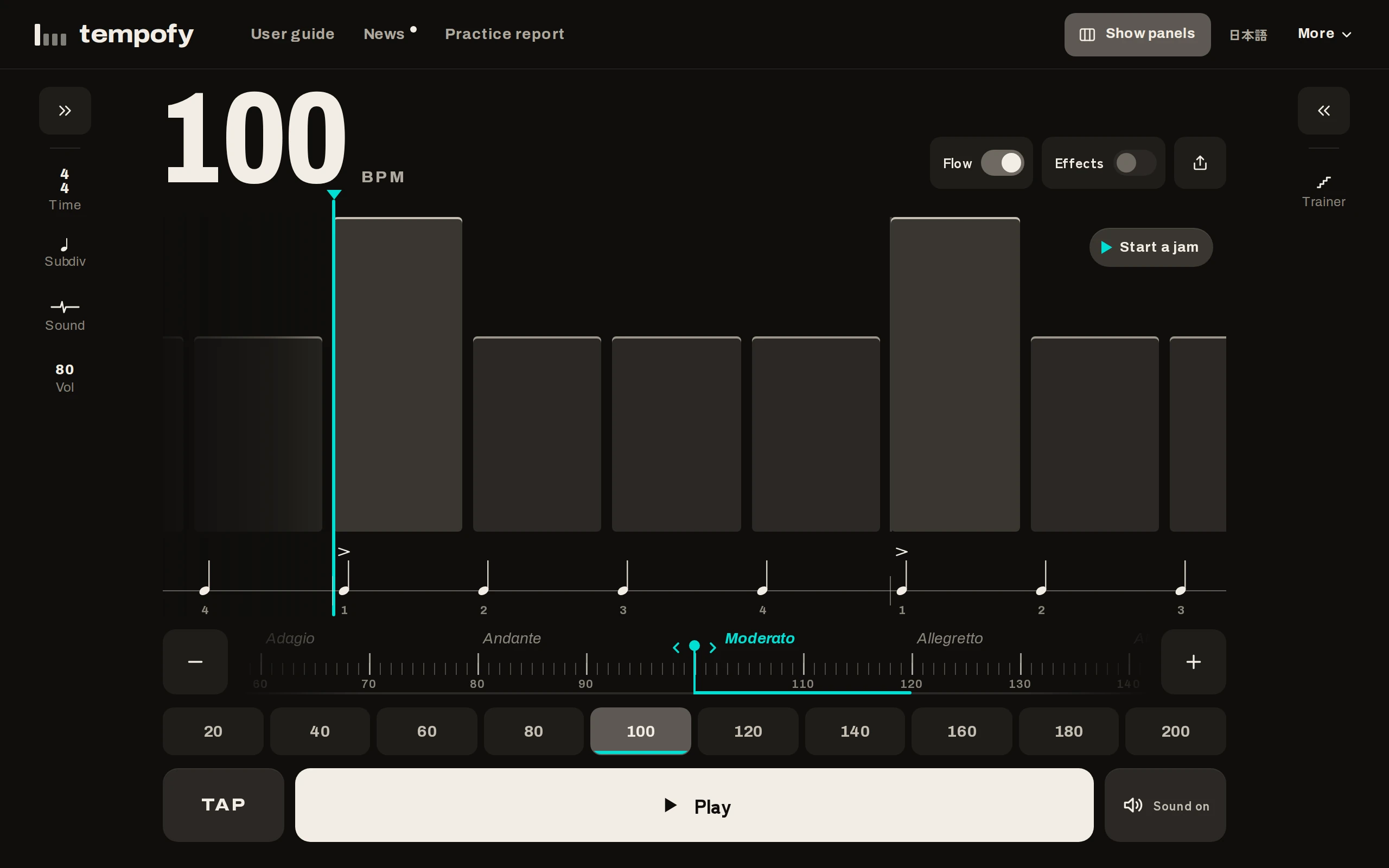
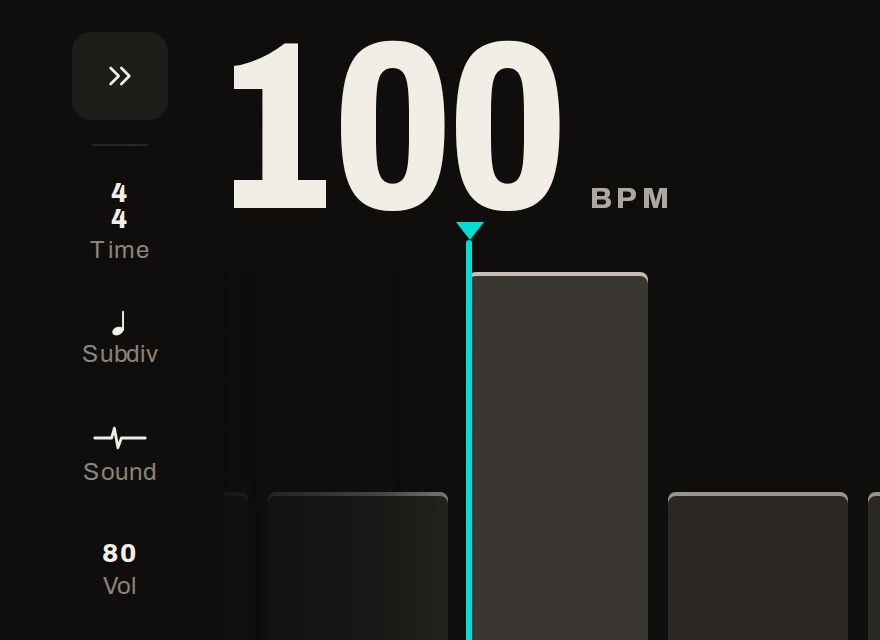
- The side panels start open. Collapse a column to turn it into a slim strip that still shows its current settings.
- "Focus" (the F key) collapses both side panels at once. Press it again to bring them back.
- Each device remembers which panels are open.
Keyboard shortcuts
On a computer, use the keyboard to work quickly. The "More" menu has the list too.
- Play / stop
- Space
- BPM up or down by 1
- ↑ ↓
- BPM up or down by 10
- Shift+↑ ↓
- Presets (20–200)
- 1–0
- Tap tempo (while tap timing is playing: tap along)
- T
- Focus (collapse the panels)
- F
Add to home screen and use offline
Add tempofy to your home screen to open it in one tap like an app, and use the metronome even offline.
- Open "Add to home screen" in the menu (on a computer, "Install as an app" in the "More" menu)
- Follow the steps for your device
- Open it right away from the icon on your home screen
When you are offline, depending on your device, your browser and how long it has been since you last opened tempofy, it may not open. On iPhone and iPad, what you saved in Safari may not carry over to the home screen app. Sign in on Safari first to save it to your account.
Signing in
The metronome works fully without signing in.
- Sign in to sync your My presets, practice records and settings with your other devices.
- You need to sign in to use the practice report and to send feedback.
- Sign in with an account such as Google, or with an email address. You can delete your account any time from "Account settings" in the menu (on a computer or tablet, the icon at the top right), which also deletes the data saved on our servers (for what is not deleted right away, see the Privacy Policy).
Send requests and bug reports from "Send feedback" in the menu (under "More" on a computer). If you are not signed in, or if you need a reply, use the contact form (opens Google Forms in a new tab).